How to Run ChatGPT Ads in India: Step-by-Step (2026)
ChatGPT ads are now live in India. OpenAI began showing ads to Indian users in late August 2026. Self-serve buying through Ads Manager opened on 4 September, with daily budgets from ₹725.
That makes ChatGPT a new channel for Indian brands, sitting next to Google, Meta and marketplace ads. This guide shows how to run ChatGPT ads in India, step by step, based on our own walkthrough of OpenAI Ads Manager. Bitesu India publishes this guide.
Key takeaways.
- ChatGPT ads in India appear for logged-in adults on the Free and Go plans. Paid plans such as Plus and Pro stay ad-free.
- Ads Manager offers Standard and Product feed campaigns, with Reach, Clicks or Conversions objectives. The minimum daily budget is ₹725.
- Set up conversion tracking and custom audiences before your first campaign, so the campaign can optimise from day one.
- Ads do not change ChatGPT's answers, and advertisers do not see users' chats.
What this article covers
- What are ChatGPT ads?
- ChatGPT ads settings at a glance
- Step 1: Create your Ads Manager account
- Step 2: Set up conversion tracking first
- Step 3: Build custom audiences
- Step 4: Add a product feed
- Step 5: Create your campaign
- Step 6: Write ads that fit a conversation
- Step 7: Launch, measure and optimise
- Common mistakes to avoid
- Who should try ChatGPT ads?
- FAQ
What Are ChatGPT Ads?
ChatGPT ads are sponsored placements shown inside ChatGPT conversations. They appear below ChatGPT's responses, clearly labelled and visually separated from the answer.
Three rules shape how they work in India:
- Who sees them: logged-in adults on the Free and Go plans. Plus, Pro, Business, Enterprise and Education users stay ad-free.
- Answer independence: OpenAI says ads do not influence ChatGPT's responses.
- Privacy: advertisers do not get users' conversations, chat history, memories or personal details. They receive aggregate campaign data such as impressions and clicks.
India is one of ChatGPT's largest markets, which is why brands are moving early.
ChatGPT Ads Settings at a Glance
Here is what we found when setting up campaigns in OpenAI Ads Manager for India.
| Setting | Options in Ads Manager |
|---|---|
| Minimum budget | ₹725 per day |
| Campaign type | Standard, or Product feed |
| Objective | Reach, Clicks, or Conversions |
| Cost type | Per view (impressions) or per click |
| Bidding | Auto bidding |
| Conversion type | Choose the conversion event to optimise for |
| Location | Choose the countries or regions to target |
| Eligible platforms | Choose where ads can run |
| Audiences | Custom audiences from your own customer lists |
| Tracking | Pixel data source for website conversions |
Ads Manager is still labelled Beta, so options can change. Check your own account before you plan a campaign.
Step 1: Create Your Ads Manager Account
By the end of this step, you will have an Ads Manager account ready to run campaigns.
- Sign in to OpenAI Ads Manager with your business account.
- Add your business details and billing.
- Check that India is available as an advertiser market in your account.
Self-serve Ads Manager opened to Indian advertisers on 4 September 2026. Before that, ads ran only through OpenAI's managed team and launch agency partners.
Check it worked: you can see Overview, Campaigns, Conversions, Tools, Billing and Settings in the left menu.
Step 2: Set Up Conversion Tracking First
By the end of this step, Ads Manager will record sales or leads from your website.
Conversion tracking tells ChatGPT ads which clicks turn into customers. Without it, you cannot run a Conversions campaign or measure return on ad spend.
- Go to Conversions in the left menu.
- Under Data Source, create a pixel. In our account, the data source type is Web.
- Add the pixel code to your website, or ask your developer to add it.
- Under Conversion Events, create the events you care about, such as purchase or lead.
- Use Event Stream and Diagnostics to confirm events are arriving.
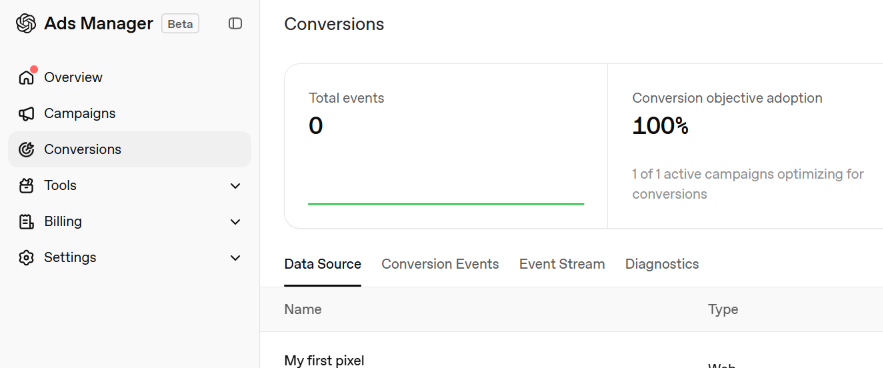
Check it worked: the Total events count rises after you test a purchase or form submission on your site.
Step 3: Build Custom Audiences
By the end of this step, you can target or exclude your existing customers.
Custom audiences let you reach people who already know your brand, such as past buyers. You can also exclude current customers from campaigns meant for new ones.
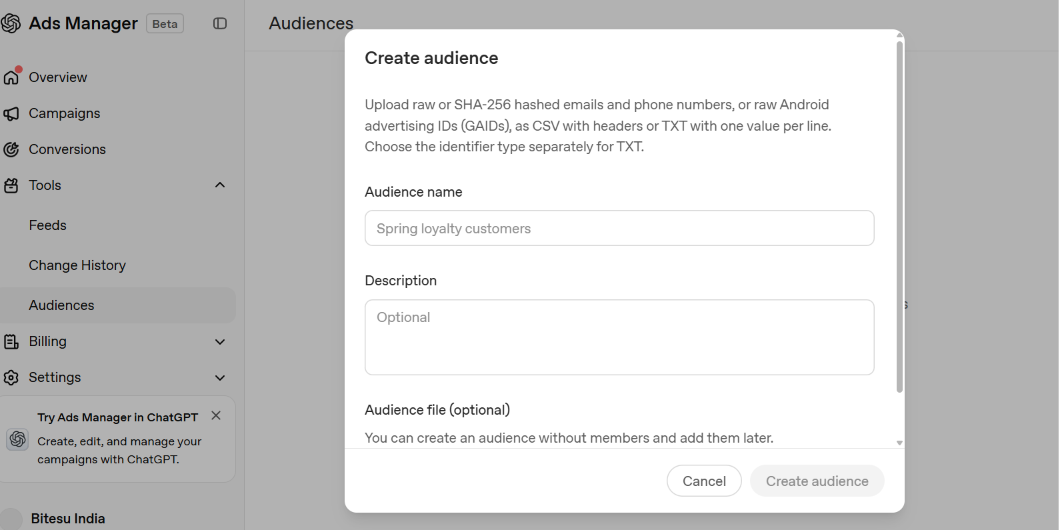
- Go to Tools → Audiences and click Create audience.
- Name the audience, for example "Repeat buyers".
- Upload a file of emails, phone numbers or Android advertising IDs (GAIDs). Ads Manager accepts raw or SHA-256 hashed values, as a CSV with headers or a TXT file with one value per line.
- For a TXT file, choose the identifier type separately.
You can also create an empty audience and add members later.
Upload only customer data you have permission to use. India's data protection rules require consent for using personal data. Hashing adds protection, but it does not replace consent.
Check it worked: the new audience appears in the Audiences list.
Step 4: Add a Product Feed (for Product Feed Campaigns)
By the end of this step, your product catalogue can power product ads.
Product feed campaigns show products from your catalogue. They suit ecommerce brands with many products, prices and images.
- Go to Tools → Feeds and click to add a new product feed.
- Give the feed a display name.
- Choose how you will send products:
- Upload CSV or TXT: best for getting started or occasional updates.
- Hosted URL: best when your catalogue lives at an HTTPS address.
- SFTP connection: best for technical teams with automated uploads.
- Complete the setup panel that opens after you create the feed.
Ads Manager notes that feed items are eligible for ads only.
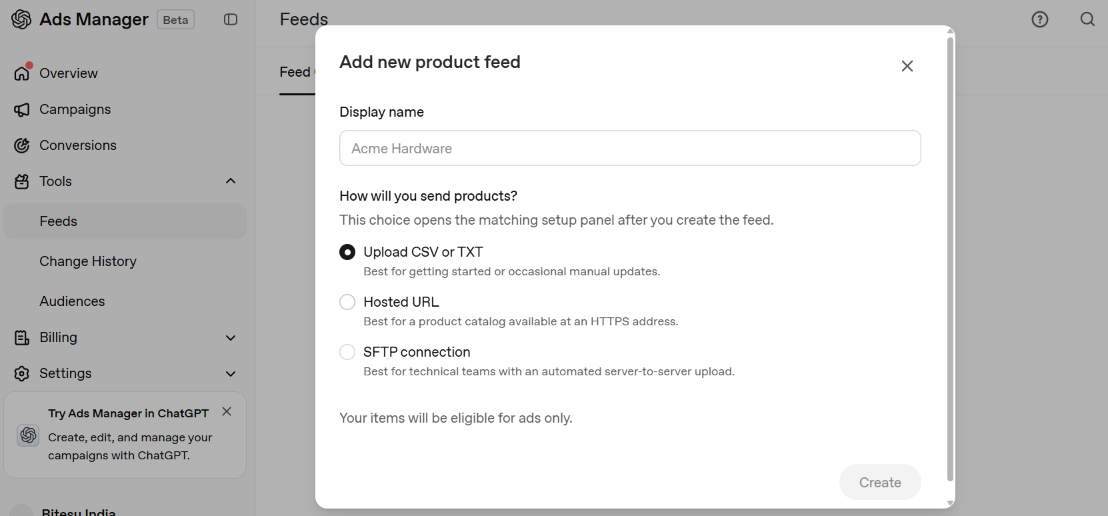
Check it worked: the feed shows your products without errors.
Step 5: Create Your Campaign
By the end of this step, your campaign settings will be ready to launch.
- Campaign type. Choose Standard for regular ads, or Product feed to advertise catalogue products.
- Objective. Pick one goal:
- Reach to show your ad to as many relevant people as possible.
- Clicks to drive traffic to your site.
- Conversions to optimise for sales or leads from your pixel.
- Cost type. Pay per view (impressions) or per click, depending on the objective.
- Budget. Set at least ₹725 per day.
- Bidding. Use Auto bidding to let the system set bids.
- Conversion type. For Conversions campaigns, choose the event to optimise for.
- Location. Choose India, or specific regions you serve.
- Eligible platforms. Choose where your ads can appear.
- Audiences. Add custom audiences to target or exclude.
Choose your objective carefully. Early hands-on reviews report that the objective cannot be changed after the campaign is created.
Check it worked: the campaign summary shows the right objective, budget and location before you publish.
Step 6: Write Ads That Fit a Conversation
By the end of this step, you will have ads ready for review.
ChatGPT ads appear while people are asking questions and making decisions. Ads that answer the next question perform better than generic slogans.
- Headline: state the benefit plainly, such as "Same-day delivery in Bengaluru".
- Description: add one specific reason to click, such as a feature or offer.
- Image: use a clear product or brand image.
- Destination URL: send people to the most relevant page, with UTM tags for tracking.
Check Ads Manager for current character limits and image sizes, as they may change during the Beta.
Check it worked: each ad shows a preview without warnings.
Step 7: Launch, Measure and Optimise
By the end of this step, your campaign will be live and learning.
- Publish the campaign and wait for approval.
- Watch impressions, clicks, CTR (click-through rate), cost and conversions in reporting.
- Allow for delays. Early reviews note reporting can lag by several hours.
- After enough data, pause weak ads and move budget to strong ones.
- Compare results with your Google, Meta and marketplace ads on the same metric, such as cost per sale.
Check it worked: the campaign shows Active status and starts recording impressions.
Common Mistakes to Avoid
- Launching without tracking. Without a pixel, you cannot run Conversions campaigns or prove results. Set up conversions first.
- Picking the wrong objective. A Reach campaign will not optimise for sales. Choose Conversions if sales are the goal, and get it right before launch.
- Uploading data without consent. Only upload customer lists you have permission to use, and prefer hashed values.
- Writing generic ads. People in ChatGPT are mid-question. Ads that answer their next question fit far better than slogans.
- Judging too early. New campaigns need time and data. Give them a fair test before you decide.
Who Should Try ChatGPT Ads?
ChatGPT ads suit brands whose customers research before they buy. That includes electronics, home appliances, education, travel, software and considered purchases in beauty or health.
Brands with a strong website and working conversion tracking will get the most from Conversions campaigns. Ecommerce brands with large catalogues can test Product feed campaigns.
If your sales happen mostly on Amazon or Flipkart, plan ChatGPT ads alongside your marketplace ads. Our guide on why your brand may need more than an Amazon PPC agency explains how to run channels as one plan.
Frequently Asked Questions
QWhat is the minimum budget for ChatGPT ads in India?
The minimum daily budget in OpenAI Ads Manager for India is ₹725, as reported at the self-serve launch and confirmed in our own account. Your actual spend depends on your objective, bids, audience and competition. Start with a budget you can sustain for a few weeks, so the campaign has enough data to learn.
QWho sees ChatGPT ads in India?
Logged-in adults using ChatGPT's Free and Go plans can see ads. Users on Plus, Pro, Business, Enterprise and Education plans stay ad-free. Ads appear below ChatGPT's responses, clearly labelled and separated from the answer, so users can tell them apart from ChatGPT's own content.
QCan advertisers see users' ChatGPT conversations?
No: OpenAI says advertisers do not get access to users' conversations, chat history, memories or personal details. Advertisers receive aggregate campaign data, such as impressions and clicks. OpenAI also says ads do not influence the answers ChatGPT gives, which protects trust in the platform for both users and brands.
QWhat campaign types and objectives are available?
Ads Manager offers Standard and Product feed campaigns, with Reach, Clicks and Conversions objectives charged per view or per click. Bidding can be set to Auto. You can add custom audiences, choose a conversion event, and set location and eligible platforms for each campaign.
QDo I need a pixel to run ChatGPT ads?
You can run Reach and Clicks campaigns without one, but you need a pixel for Conversions campaigns and for measuring sales. Set up a web data source under Conversions, add the pixel to your site, and create your conversion events before you launch. This lets you judge results on real sales.
Plan ChatGPT Ads With the Rest of Your Channels
ChatGPT ads give Indian brands a new way to reach people while they research. Set up tracking first, build audiences from your own customers, choose the right objective, and measure results against your other channels.
Want a second opinion on where ChatGPT ads fit in your marketing mix? Talk to our team for a free growth audit of your current channels.
About the Bitesu India Team
Bitesu India is a Delhi-based marketplace growth agency and Amazon Verified Marketing Partner. We run advertising and account growth for brands across Amazon, Flipkart, Myntra, Meesho, Blinkit and Zepto, and plan Meta ads alongside marketplace ads.
Learn more about how we work with brands.
We run this for brands every day. See our Meta Ads for Amazon sellers and Amazon PPC management services, or browse all services.